

A Beginner's Guide to HTML: Mastering Hypertext Markup Language

HTML and its structure :
Think of HTML as the skeleton of every website you visit. Just like how our skeleton gives our body structure, HTML gives structure to web pages. It's like giving instructions to your browser about what to show and how to organize it.
You might be wondering: What is a markup language, and how is it different from a programming language?
| Aspect | Markup Language | Programming Language |
| Purpose | Describes document structure and presentation | Creates logic, performs computations, controls program flow |
| Primary Use | Formatting and organizing content | Developing software and creating dynamic interactions |
| Examples | HTML, XML, Markdown | JavaScript, Python, Java |
| Syntax | Uses tags to define elements | Uses complex syntax for logic and functions |
<!DOCTYPE html>
<html lang="en">
<head>
    <meta charset="UTF-8">
    <meta name="viewport" content="width=device-width, initial-scale=1.0">
    <title>Document Title</title>
    <!-- Link to CSS or include other meta tags here -->
</head>
<body>
    <!-- Content of the document goes here -->
    <h1>Welcome to My Website</h1>
    <p>This is a paragraph of text in the body of the document.</p>
    <!-- Include JavaScript files or other elements here -->
</body>
</html>
<!DOCTYPE html>: This declaration defines the document type and version of HTML. It helps browsers to render the document correctly.<html lang="en">: The root element of the HTML document. Thelangattribute specifies the language of the document.<head>: Contains meta-information about the document, such as character set, viewport settings, and links to stylesheets.<meta charset="UTF-8">: Specifies the character encoding for the document (UTF-8 is widely used).<meta name="viewport" content="width=device-width, initial-scale=1.0">: Ensures the document is responsive and adjusts to different screen sizes.<title>: Sets the title of the document, which appears in the browser’s title bar or tab.<body>: Contains the content of the document that is visible to users, such as headings, paragraphs, and other HTML elements.
HTML Tags & Elements :
Think of HTML tags like containers or labels:
<p>This is a paragraph</p>
<p>is the opening tag</p>is the closing tagText between is the content
Like a labeled box: "Paragraph" label with content inside
Types of Tags
Paired Tags: Have opening and closing
<h1>Main Heading</h1>
Self-Closing Tags: No closing tag
<img src="picture.jpg">
Nested Tags: Tags inside other tags
( Like putting a smaller box inside a bigger box )
<div>
    <p>Paragraph inside a container</p>
</div>
Semantic vs Non-Semantic:
<!-- example of semantic tags ( these tags are meaning based tags ) -->
<header>Website Header</header>
<nav>Navigation Menu</nav>

<!-- example of non-semantic tags -->
<div>Generic Container</div>
<span>Inline Text</span>
Elements and Attributes
Elements → Complete package of opening tag, content, and closing tag
Example: <p>Hello World</p>
<p>is opening tagHello Worldis content</p>is closing tag
Attributes → Extra information about an element
Provide additional details or modify behavior
Always specified in the opening tag
Example:
<img src="cat.jpg" alt="Cute Cat" width="300" height="200">src: Source of imagealt: Alternative textwidthandheight: Size specificationsother examples -
Link Element with Attributes:
<a href="https://www.example.com" target="_blank">Click Here</a>href: Website addresstarget: How link opens (new tab/same tab)
Input Element with Attributes:
<input type="text" placeholder="Enter your name" required>type: Kind of inputplaceholder: Hint textrequired: Makes field mandatory
Text Elements :
Headings
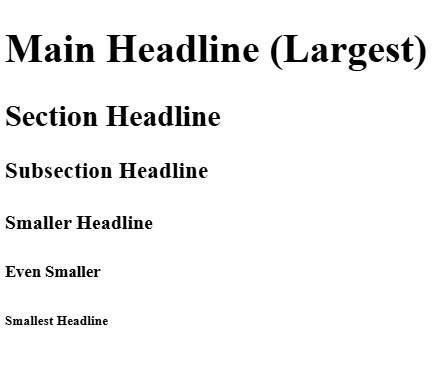
<h1> to <h6>): Headings are used to define the titles or subtitles in your content, with <h1> being the most important and <h6> the least.
<h1>Main Headline (Largest)</h1>
<h2>Section Headline</h2>
<h3>Subsection Headline</h3>
<h4>Smaller Headline</h4>
<h5>Even Smaller</h5>
<h6>Smallest Headline</h6>
Output on browser will look like this :
Paragraphs
The
<p>tag defines a paragraph of text. It's used to separate blocks of text into readable sections.Basic text container
Adds default spacing
Used for main body content
<p>This is a standard paragraph of text. It wraps automatically and provides space between lines.</p>Output on browser will look like this :

<pre> Tag (preformatted text)
<pre>
This is preformatted text.
    It preserves
        both spaces
            and line breaks
</pre>
Keeps exact formatting
Useful for code snippets or ASCII art
Maintains original spacing and line breaks
<br> Tag (Line Break)
First line<br>
Second line<br>
Third line
Creates a single line break
Used to force text to next line
Unlike paragraph, doesn't add extra spacing
<hr> Tag (Horizontal Rule)
<p>Content above</p>
<hr>
<p>Content below</p>
Creates a horizontal line
Used to separate content sections
Visually breaks up page content
<div> and <span> Tag
used for grouping and structuring content.
Think of them as containers.
They don’t come with any visual style — they’re used so CSS or JavaScript can work on them.
  <div class="container">
    <h2>About Me</h2>
    <p>I am a <span class="highlight">web developer</span>.</p>
  </div>
| Element | Type | Description |
<div> | Block-level | Groups larger sections or blocks |
<span> | Inline | Groups small pieces (like a word) |
Text Formatting Tags :
Bold and Strong
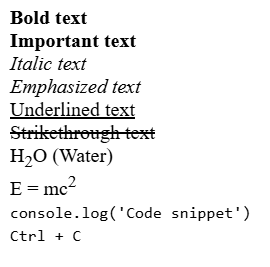
<b>Bold text</b>
<strong>Important text</strong>
<b>: Visual boldness<strong>: Semantic importance
Italic and Emphasis
<i>Italic text</i>
<em>Emphasized text</em>
<i>: Visual italics<em>: Semantic emphasis
Underline and Strikethrough
<u>Underlined text</u>
<s>Strikethrough text</s>
<u>: Underline<s>: Crossed-out text
Subscript and Superscript
H<sub>2</sub>O (Water)
E = mc<sup>2</sup>
<sub>: Lower text<sup>: Raised text
Code and Keyboard
<code>console.log('Code snippet')</code>
<kbd>Ctrl + C</kbd>
<code>: Displays code<kbd>: Keyboard input
output for all text formatting →
Quotations and Citation Elements blockquote , quotation , abbr, bdo
Blockquote (
<blockquote>):The<blockquote>tag is used to define a section that is quoted from another source. This is typically used for longer quotations. You can optionally use theciteattribute to specify the source of the quote.<blockquote cite="https://www.example.com/quote-source"> This is a blockquote. Blockquotes are used for longer quotes from an external source. </blockquote>Inline Quotation (
<q>):The<q>tag is used for short, inline quotations within a paragraph. The browser usually adds quotation marks around the text enclosed in<q>.<p>This is an inline quotation: <q>To be, or not to be, that is the question.</q></p>Abbreviation (
<abbr>):The<abbr>tag is used to represent an abbreviation or acronym, providing the full form of the text in thetitleattribute. When the user hovers over the abbreviation, the full form is displayed. For example,<abbr title="World Health Organization">WHO.<p>The abbreviation for World Health Organization is <abbr title="World Health Organization">WHO</abbr>.</p>Bi-directional Tag <bdo> : It is used to change the direction in which text is displayed — either left-to-right (LTR) or right-to-left (RTL) — which is especially helpful for languages like Arabic or Hebrew.
<bdo dir="rtl">This text will go right to left</bdo>
Html Semantic Tags :
Header (
<header>): The<header>tag is used to define introductory content or a set of navigational links. It often contains headings, logo, or navigation elements.Footer (
<footer>): The<footer>tag is used to define the footer of a document or section. It typically contains information like copyright statements, contact information, or links to related documents.Nav (
<nav>): The<nav>tag is used to define a section of navigation links. It helps users navigate through different sections of the website.Article (
<article>): The<article>tag represents a self-contained composition in a document, such as a news article or blog post, that can be independently distributed or reused.Section (
<section>): The<section>tag is used to group related content within a document. Sections typically include a heading and are used to organize the document into thematic parts.Aside (
<aside>): The<aside>tag is used to define content that is tangentially related to the content around it, such as sidebars, pull quotes, or additional information.
HTML List :
- Unordered List (
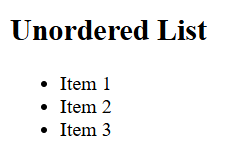
<ul>): The<ul>tag is used to create an unordered (bulleted) list. Each item in the list is defined using the<li>tag.
    <!-- Unordered List -->
<h2>Unordered List</h2>
<ul>
<li>Item 1</li>
<li>Item 2</li>
<li>Item 3</li> </ul>
| Value | Description |
| disc | Sets the list item marker to a bullet (default) |
| circle | Sets the list item marker to a circle |
| square | Sets the list item marker to a square |
| none | The list items will not be marked |
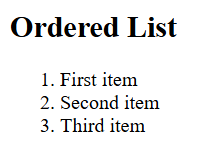
Ordered List (<ol>): The <ol> tag is used to create an ordered (numbered) list. Each item in the list is defined using the <li> tag. The list items are automatically numbered by the browser.
  <!-- Ordered List -->
<h2>Ordered List</h2>
<ol>
    <li>First item</li>
    <li>Second item</li>
    <li>Third item</li>
</ol>
| Type | Description |
| type="1" | The list items will be numbered with numbers (default) |
| type="A" | The list items will be numbered with uppercase letters |
| type="a" | The list items will be numbered with lowercase letters |
| type="I" | The list items will be numbered with uppercase roman numbers |
| type="i" | The list items will be numbered with lowercase roman numbers |
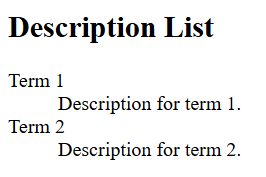
Description List (<dl>): The <dl> tag is used to create a description (or definition) list. It consists of terms and descriptions. The <dt> tag defines a term, and the <dd> tag provides the description for that term.
  <!-- Description List -->
<h2>Description List</h2>
<dl>
    <dt>Term 1</dt>
    <dd>Description for term 1.</dd>
    <dt>Term 2</dt>
    <dd>Description for term 2.</dd>
</dl>
HTML Link :
HTML links, also known as hyperlinks, allow users to navigate between web pages, sections within a page, or external resources. Links are one of the most fundamental elements of the web, enabling seamless browsing.
Basic Syntax of an HTML Link
The <a> (anchor) tag is used to create a hyperlink. The most basic form of an HTML link looks like this:
<a href="https://google.com">Visit Google</a>
Attributes of the <a> Tag
The <a> tag supports several attributes to enhance functionality:
| Attribute | Description | Example |
href | Specifies the destination URL | <a href="https://example.com">Click Here</a> |
target | Determines where the link opens | <a href="https://example.com" target="_blank">New Tab</a> |
title | Adds a tooltip on hover | <a href="https://example.com" title="Go to Example">Hover Over Me</a> |
rel | Specifies the relationship between the current document and the linked URL | <a href="https://example.com" rel="nofollow">No Follow</a> |
download | Allows users to download the linked file | <a href="file.pdf" download="MyFile.pdf">Download File</a> |
Types of HTML Links
1️⃣ Absolute Links
Links that include the full URL of the destination.
<a href="https://www.google.com">Go to Google</a>
2️⃣ Relative Links
Links that point to another page within the same website.
<a href="/about.html">About Us</a>
✔ Used for linking internal pages within a website.
3️⃣ Anchor Links (Jump to Section)
These links navigate to a specific section of a webpage using an id.
<a href="#section2">Jump to Section 2</a>
<h2 id="section2">Section 2</h2>
4️⃣ Email Links (Mailto)
Opens the user's default email client to send an email.
<a href="mailto:someone@example.com">Send Email</a>
5️⃣ Phone Links (Call a Number)
Allows users to directly call a phone number when clicked on mobile devices.
<a href="tel:+1234567890">Call Us</a>
6️⃣ Downloadable Links
Used to provide a file for download.
<a href="document.pdf" download>Download PDF</a>
Opening Links in New Tab vs. Same Tab
By default, links open in the same tab. To open in a new tab, use the target="_blank" attribute:
<a href="https://example.com" target="_blank">Open in New Tab</a>
🛑 Security Note: Always add rel="noopener noreferrer" when opening links in a new tab to prevent security vulnerabilities.
<a href="https://example.com" target="_blank" rel="noopener noreferrer">Secure New Tab</a>
Adding Icons to Links (Font Awesome)
You can add icons to links using Font Awesome:
<a href="https://twitter.com">
  <i class="fab fa-twitter"></i> Twitter
</a>
🔗 Make sure to include Font Awesome CDN*:*
<link rel="stylesheet" href="https://cdnjs.cloudflare.com/ajax/libs/font-awesome/6.0.0/css/all.min.css">
HTML Images : <img> and <picture>
HTML provides tags like <img> and <picture> to embed images into web pages. These elements help enhance visual content, improve user experience, and support responsive design.
The <img> Tag
<img src="image.jpg" alt="A beautiful landscape">
Attributes of <img>
| Attribute | Description | Example |
src | Specifies the image URL | <img src="image.jpg"> |
alt | Alternative text for screen readers & SEO | <img alt="Sunset view"> |
width | Specifies image width (in px or %) | <img width="300"> |
height | Specifies image height | <img height="200"> |
title | Tooltip shown on hover | <img title="Scenic Mountain"> |
loading | Lazy-loads the image for performance | <img loading="lazy"> |
srcset | Defines multiple image versions for responsive design | <img srcset="image-480w.jpg 480w, image-800w.jpg 800w"> |
Use loading="lazy"
- Defers off-screen images until they’re needed, improving load speed.
<img src="large-image.jpg" loading="lazy" alt="Mountain Lake">
Use Relative or Absolute Paths
Relative: Good for internal resources
Absolute: For external image URLs
The <picture> Tag
The <picture> tag provides a flexible way to serve different images based on screen size, device pixel ratio, or image format (like WebP or JPEG).
Structure:
<picture>
  <source srcset="image.webp" type="image/webp">
  <source srcset="image.jpg" type="image/jpeg">
  <img src="fallback.jpg" alt="Nature scenery">
</picture>
Responsive Images Using Media Queries:
<picture>
  <source media="(min-width: 800px)" srcset="large.jpg">
  <source media="(min-width: 400px)" srcset="medium.jpg">
  <img src="small.jpg" alt="Responsive Image">
</picture>
The browser chooses the first matching
<source>.If none match, it falls back to the
<img>tag.
WebP vs JPEG vs PNG — Quick Comparison Table:
| Feature | JPEG | PNG | WebP |
| Lossy Compression | ✅ | ❌ | ✅ |
| Lossless Compression | ❌ | ✅ | ✅ |
| Transparency | ❌ | ✅ | ✅ |
| Animation Support | ❌ | ❌ | ✅ |
| File Size | Medium | Large | Smaller |
| Browser Support | ✅ (All) | ✅ (All) | ✅ (Most modern) |
For older browsers*, use* <picture> or fallback to JPEG/PNG.
HTML Tables :
HTML tables are used to display data in rows and columns, much like a spreadsheet. They’re perfect for organizing information like schedules, reports, pricing, and more.
Basic Structure of an HTML Table
<table>
  <tr>
    <th>Heading 1</th>
    <th>Heading 2</th>
  </tr>
  <tr>
    <td>Data 1</td>
    <td>Data 2</td>
  </tr>
</table>
| Tag | Meaning |
<table> | Defines the entire table |
<tr> | Table row |
<th> | Table header cell (bold and centered by default) |
<td> | Table data cell |
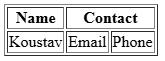
Merging Cells with colspan and rowspan
colspan: Merge columns
<td colspan="2">Merged Column</td>
rowspan: Merge rows
<td rowspan="2">Merged Row</td>
Example:
<table border="1">
  <tr>
    <th>Name</th>
    <th colspan="2">Contact</th>
  </tr>
  <tr>
    <td>Alice</td>
    <td>Email</td>
    <td>Phone</td>
  </tr>
</table>
Semantic Elements for Advanced Tables
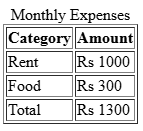
| Tag | Description |
<thead> | Groups header rows |
<tbody> | Groups body rows |
<tfoot> | Groups footer rows |
<caption> | Adds a title to the table |
<table border="1">
  <caption>Monthly Expenses</caption>
  <thead>
    <tr>
      <th>Category</th>
      <th>Amount</th>
    </tr>
  </thead>
  <tbody>
    <tr>
      <td>Rent</td>
      <td>Rs 1000</td>
    </tr>
    <tr>
      <td>Food</td>
      <td>Rs 300</td>
    </tr>
  </tbody>
  <tfoot>
    <tr>
      <td>Total</td>
      <td>Rs 1300</td>
    </tr>
  </tfoot>
</table>
HTML Forms:
Forms are the backbone of user interaction on the web. From sign-up pages to feedback forms, login screens to payment checkouts — forms let users input and send data.
<form action="/submit-url" method="post">
  <!-- Form fields go here -->
</form>
| Attribute | Description |
action | URL where form data is sent |
method | GET (data in URL) or POST (data in body) |
Common Form Elements
Text Input
<label for="name">Name:</label>
<input type="text" id="name" name="username" />
type="text": Accepts plain textname: Key for the data when submittedid: Used with<label>for accessibility
Password Field
<label for="password">Password:</label>
<input type="password" id="password" name="userpass" />
- Hides characters for privacy
Email, Number, Date, etc.
<input type="email" name="useremail" required />
<input type="number" name="age" min="18" max="99" />
<input type="date" name="dob" />
required,min,max: Built-in validation
Textarea
<label for="message">Message:</label>
<textarea id="message" name="user_message" rows="4" cols="30"></textarea>
- Good for multi-line input like feedback or comments
Radio Buttons
<p>Gender:</p>
<input type="radio" id="male" name="gender" value="male" />
<label for="male">Male</label>

<input type="radio" id="female" name="gender" value="female" />
<label for="female">Female</label>
- Only one option can be selected per group (same
name)
Checkboxes
<p>Skills:</p>
<input type="checkbox" id="html" name="skills" value="HTML" />
<label for="html">HTML</label>

<input type="checkbox" id="css" name="skills" value="CSS" />
<label for="css">CSS</label>
- Multiple selections allowed
Dropdown (<select>)
<label for="country">Country:</label>
<select id="country" name="country">
  <option value="in">India</option>
  <option value="us">USA</option>
  <option value="uk">UK</option>
</select>
Buttons
<input type="submit" value="Submit Form" />
<input type="reset" value="Reset Form" />
<button type="button">Click Me</button>
| Type | Function |
submit | Sends the form |
reset | Clears all fields |
button | Custom JS button |
Additional Attributes (Built-in Validation)
| Attribute | Purpose |
required | Field must be filled |
placeholder | Shows hint text inside input |
readonly | Input is not editable |
disabled | Field is inactive |
min, max, maxlength | Restrict values/length |
pattern | Use regex for custom validation |
Form Submission Example
<form action="/submit" method="post">
  <label for="email">Email:</label>
  <input type="email" id="email" name="user_email" required />

  <label for="pass">Password:</label>
  <input type="password" id="pass" name="user_pass" required />

  <input type="submit" value="Login" />
</form>
HTML5 Form Features
autocomplete="on/off": Helps browsers suggest saved datanovalidate: Disables HTML5 validation<fieldset>+<legend>: Group and label related fields
<fieldset>
  <legend>Login Info</legend>
  <label for="user">Username:</label>
  <input type="text" id="user" name="user" />
</fieldset>
HTML5 Input Types (Form Types)
| Input Type | Purpose |
text | Default, single-line text |
email | Validates email format (user@example.com) |
url | Validates proper URL format (https://...) |
tel | For phone numbers (does not validate format) |
number | Numeric input with min, max, step |
range | Slider input with min, max, step |
date | Date picker |
month | Month picker (YYYY-MM) |
week | Week picker (YYYY-W##) |
time | Time input (HH:MM) |
datetime-local | Date & time (without timezone) |
color | Color picker input |
search | Optimized for search fields (shows clear button on some browsers) |
password | Hidden characters (for sensitive info) |
checkbox | Multiple options selection |
radio | One option selection from a group |
file | File upload |
submit | Submit form data |
reset | Clear form fields |
hidden | Invisible data (used programmatically) |
button | A general-purpose button (needs JS or custom action) |
Example Form with All Input Types:
<form>
  <label>Email: <input type="email" required></label><br>
  <label>URL: <input type="url"></label><br>
  <label>Phone: <input type="tel"></label><br>
  <label>Number: <input type="number" min="1" max="10"></label><br>
  <label>Range: <input type="range" min="0" max="100"></label><br>
  <label>Date: <input type="date"></label><br>
  <label>Time: <input type="time"></label><br>
  <label>Color: <input type="color"></label><br>
  <label>Password: <input type="password"></label><br>
  <label>File Upload: <input type="file"></label><br>
  <input type="submit" value="Submit">
</form>
How Form Submission Works (Step-by-Step)
User fills in the form
Clicks the submit button
Browser gathers form data as
key=valuepairsSends the data to the URL specified in the
actionattributeServer processes the data (e.g., stores in database, sends email, etc.)
Server returns a response page or redirects
GET vs POST Method
| Feature | GET | POST |
| Data in URL? | ✅ Yes (visible) | ❌ No (hidden in body) |
| Length limit? | ✅ Yes (URL limit ~2000 chars) | ❌ No practical limit |
| Secure? | ❌ No | ✅ More secure |
| Use cases | Search, filters, bookmarks | Login, sign-up, sensitive data |
| Caching | ✅ Cached by browser | ❌ Not cached |
Example (GET):
<form action="/search" method="get">
  <input type="text" name="q" />
  <input type="submit" value="Search" />
</form>
URL will be like:https://example.com/search?q=html
query string - A query string is the part of a URL that carries data from a form (or a link) to the server using the GET method.
It comes after the ? in the URL and includes key-value pairs like:
?key1=value1&key2=value2
https://example.com/search?q=html
Query String Structure
?key1=value1&key2=value2&key3=value3
Starts with a ?
Each parameter is a key=value pair
Multiple pairs are separated with
&Why It Matters:
✅ Useful for search filters, pagination, and bookmarkable URLs
✅ Easily shared or copied because everything is in the URL
❌ Not secure — should not be used for passwords or personal info
Security Tips for Form Submission
✅ Use POST for sensitive data (like passwords)
✅ Always validate data on the server
✅ Use CSRF protection for authenticated actions
✅ Sanitize user input to prevent XSS attacks
Conclusion
HTML is the backbone of every webpage — from structuring content to embedding media, forms, and links. Whether you're just starting out or brushing up your skills, understanding these basic HTML elements lays the foundation for building modern, responsive, and interactive websites.
Keep experimenting, keep learning, and don't forget — the best way to learn HTML is by writing it!
If you found this blog helpful, feel free to share it or drop a comment below. Happy coding! 💻
📬 Connect With Me :